Initial Admin Login & Password Change
After successfully deploying Milou with the CLI tool, you'll need to log in with the administrator account and complete the mandatory password change process. This guide walks you through these initial steps.
Accessing and Logging In
-
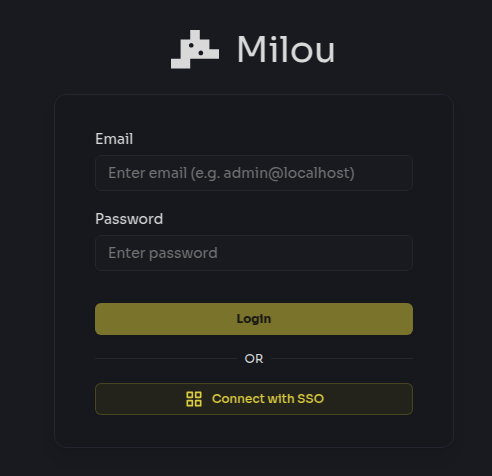
Open a web browser and navigate to your Milou instance URL:
- Use the domain you specified during the CLI setup wizard:
https://your-domain.com - If using localhost:
http://localhost(or configured port)
- Use the domain you specified during the CLI setup wizard:
-
Enter your credentials:
- Username:
admin@localhost(or the one you configured) - Password: The temporary password provided by the CLI setup wizard (as seen in Deploying with the CLI)
- Username:
-
Click the Sign In button
First-Time Password Change
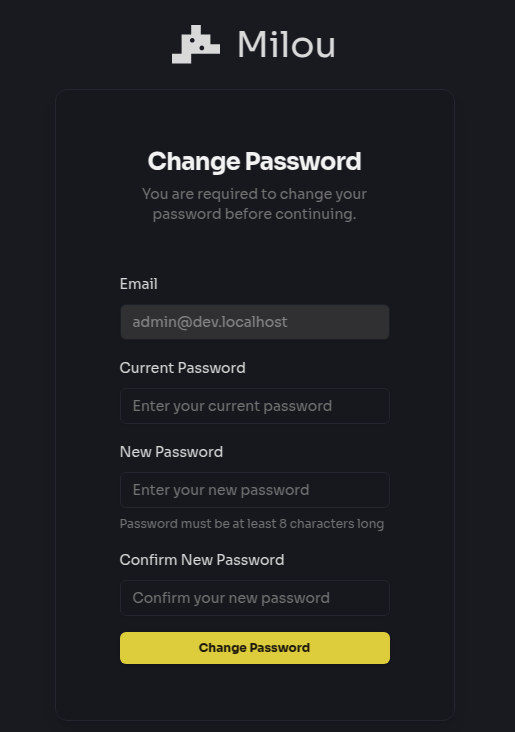
Upon your first login with the temporary credentials, you'll automatically be redirected to the password change screen:
-
Enter your new password (following these security requirements):
- Minimum 12 characters
- At least one uppercase letter
- At least one lowercase letter
- At least one number
- At least one special character
-
Confirm your new password
-
Click Change Password
Next Steps
Now that you're logged in as an administrator, you should:
-
Configure Your Instance: Proceed to the Instance Configuration section to:
- Set up LLM integration for AI-assisted features
- Connect to reporting platforms
-
Explore the Platform: Familiarize yourself with the Milou interface:
- Create a test assessment
- Explore the dashboard features
- Review available modules
-
Add Additional Users: From the Admin Dashboard, you can:
- Create accounts for team members
- Assign appropriate roles and permissions
- Set up user groups if needed