Azure OpenAI: Creating a gpt-4o-mini Deployment in Europe
This guide details how to set up a gpt-4o-mini model deployment using the Azure OpenAI Service, with a focus on hosting in Europe for GDPR compliance. Following these steps will provide you with the necessary credentials to configure Milou.
Prerequisites
- An active Microsoft Azure subscription.
- Access to the Azure OpenAI Service. You may need to apply for access through the Azure portal.
Step 1: Create an Azure OpenAI Resource
First, you need to create an Azure OpenAI resource in your Azure account.
- Log in to the Azure Portal.
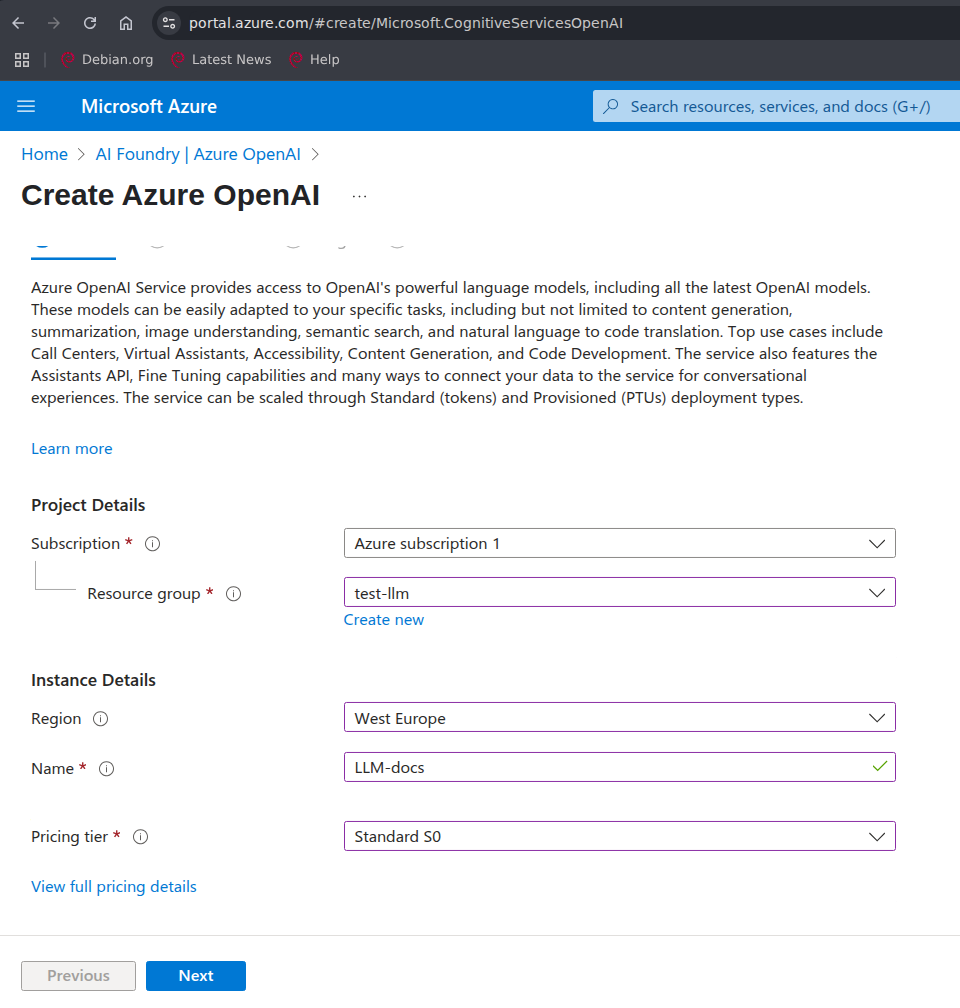
- In the search bar at the top, type "Azure OpenAI" and select it from the results.
- Click the Create button.
- Fill in the required details for the new resource:
- Subscription: Choose your Azure subscription.
- Resource group: Select an existing resource group or create a new one.
- Region: Select a region in Europe (e.g., "West Europe" or "Sweden Central"). This is crucial for data residency.
- Name: Give your resource a unique name.
- Pricing tier: Select the appropriate pricing tier (usually "Standard S0").
- Review the settings and click Create.
Step 2: Deploy the gpt-4o-mini Model
Once your Azure OpenAI resource is created, you can deploy the model.
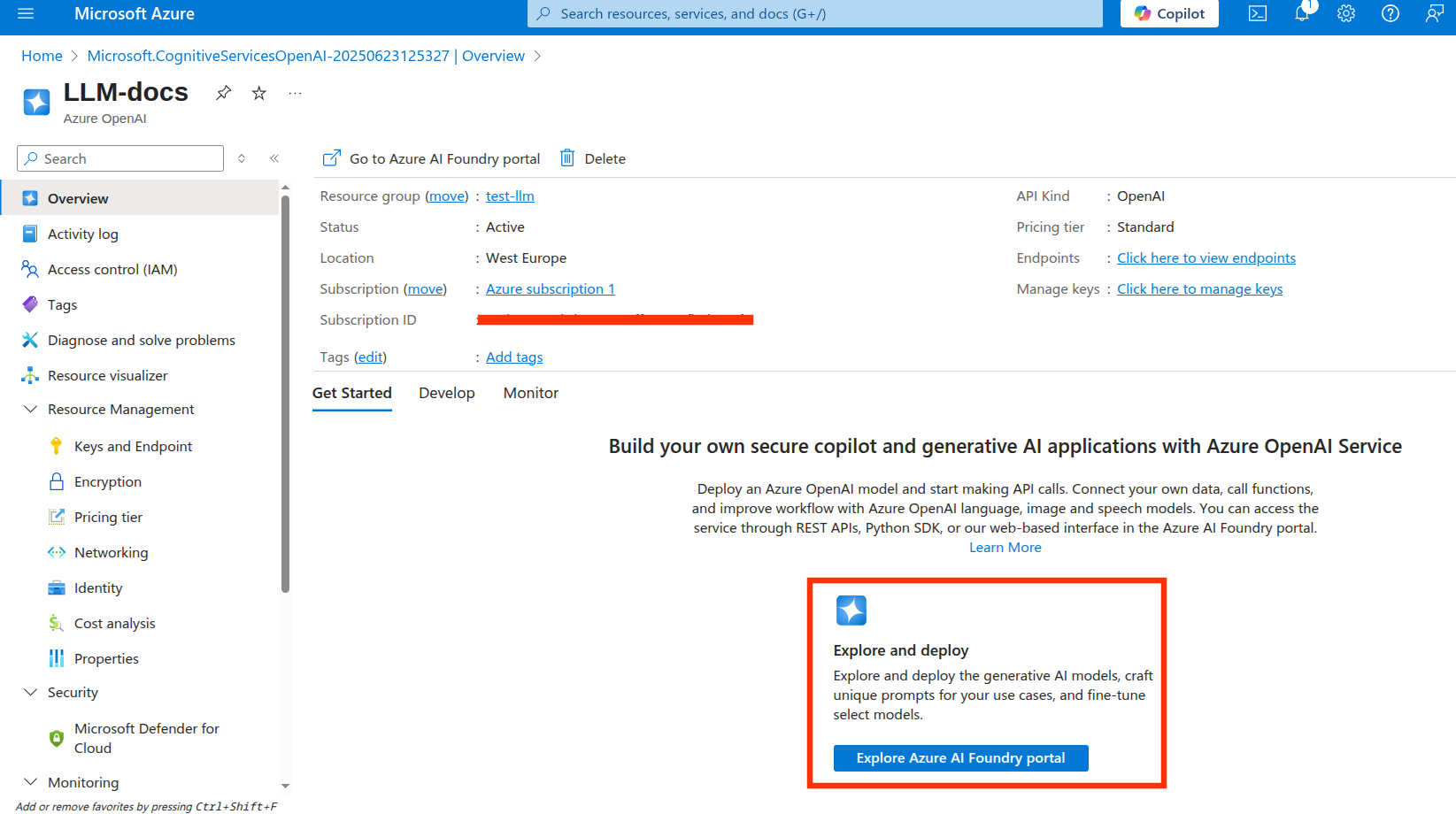
- From the deployment confirmation page, click Go to resource.
- On the resource's overview page, click Explore in Azure AI Foundry portal. This will redirect you to the Azure AI portal.
-
In the Azure AI Foundry, select Deployments from the sidebar menu.
-
Click Deploy model to start a new deployment. A catalog of models will appear.
-
Select the
gpt-4o-mini Chat completionmodel from the catalog and click Confirm.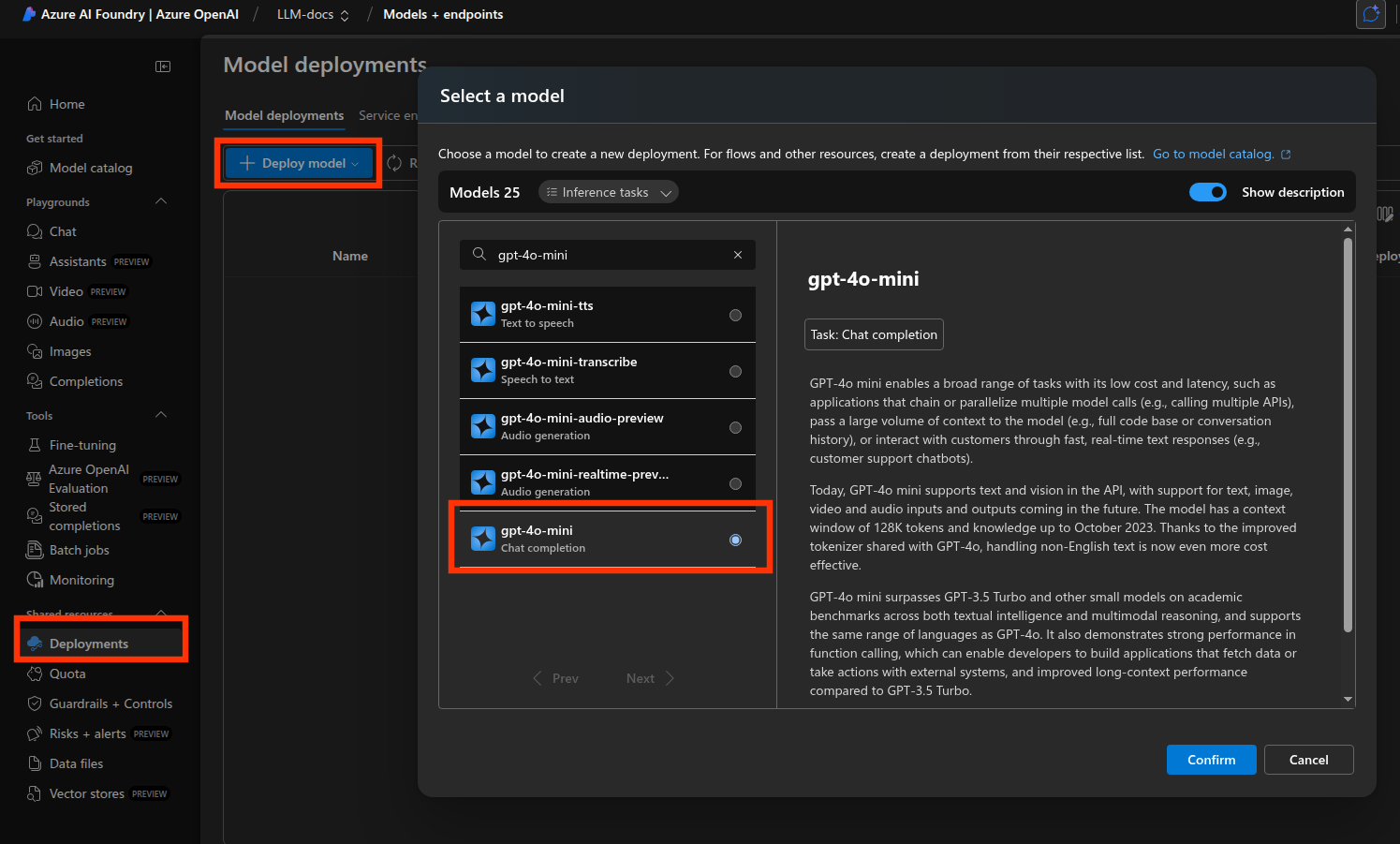
-
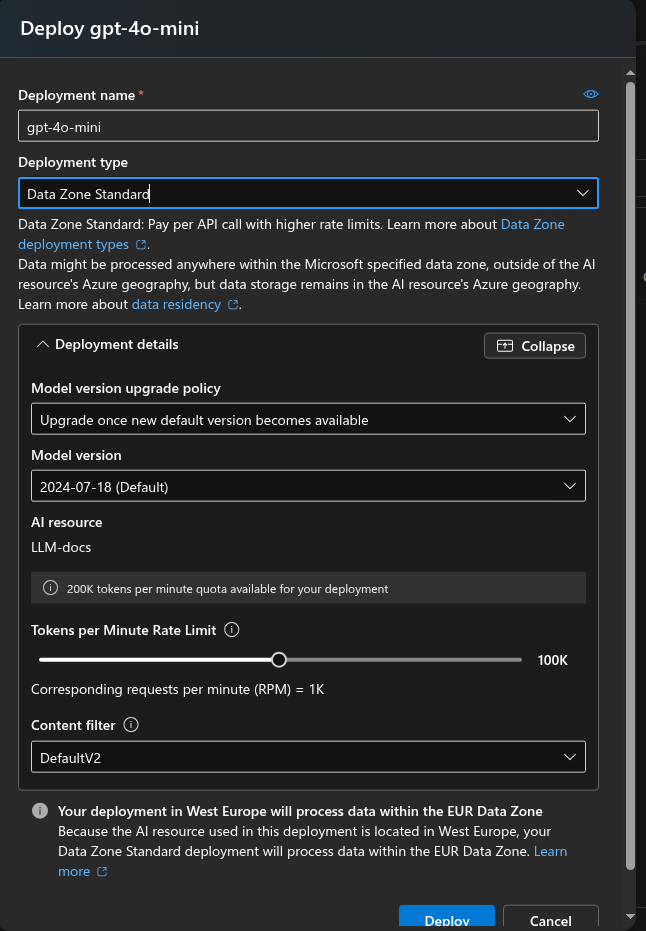
A new dialog will appear to configure the deployment. Fill in the details:
- Deployment type: Select
Data Zone Standard. This is a critical step to ensure that your data is processed exclusively within the European Union, in compliance with GDPR. - Deployment name: This will be your Deployment ID in Milou's configuration. It is recommended to use a descriptive name without spaces, for example,
gpt-4o-mini-milou.
- Deployment type: Select
-
Click Deploy. The deployment process might take a few minutes.
Step 3: Retrieve API Key and Endpoint
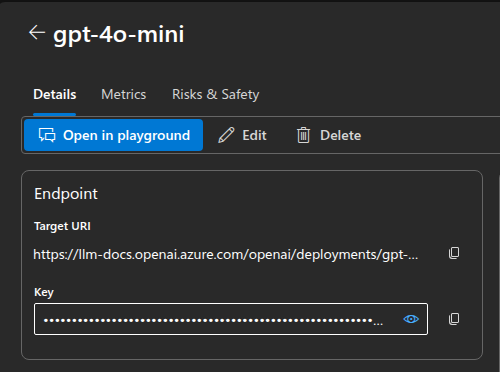
Once the deployment is successful, you will be taken to the deployment's overview page. Here you can find the necessary credentials to connect Milou.
- Locate and copy the API Key.
- Locate and copy the Target URI.
Next Steps
Now that you have your Azure OpenAI credentials, you can complete the setup in Milou.
Return to the LLM Configuration guide to enter the API Key, Endpoint, and your Deployment Name into the configuration form.
You have now successfully configured Milou to use your gpt-4o-mini deployment on Azure.