LLM Configuration
Milou utilizes Large Language Models (LLMs) through its Engine for advanced capabilities such as analyzing target context, performing passive and active vulnerability analysis, and automatically generating reports based on this contextual understanding. This guide explains how to configure LLM providers for your Milou instance, which is essential for leveraging these AI-driven features.
Supported LLM Providers
Milou can connect to a variety of LLM providers. You can configure connections to:
- OpenAI or other OpenAI-Compatible APIs: This is the default method. Use it for OpenAI's models (e.g., GPT-4) or any third-party service that provides an API conforming to OpenAI's standards.
- Azure OpenAI Service: For dedicated integration with Microsoft's Azure-based OpenAI models. Notably, Azure OpenAI offers hosting options within Europe, which can assist with GDPR compliance and data residency requirements. See our Azure OpenAI Setup Guide.
Azure OpenAI can host in Europe, ensuring GDPR-compliant data residency..
- AWS Bedrock: To access foundation models available through Amazon Web Services.
LLM Model Choice & Our Recommendation
Milou supports various LLM models. When you integrate a new model, Milou automatically benchmarks it to test its compatibility and performance with our AI features.
The Milou development team uses OpenAI's gpt-4o-mini, which we find offers an excellent balance of performance and cost for AI-driven functionalities.
Accessing LLM Configuration in Milou
As an administrator:
- Navigate to the Settings page.
- Select the LLM Configuration tab.
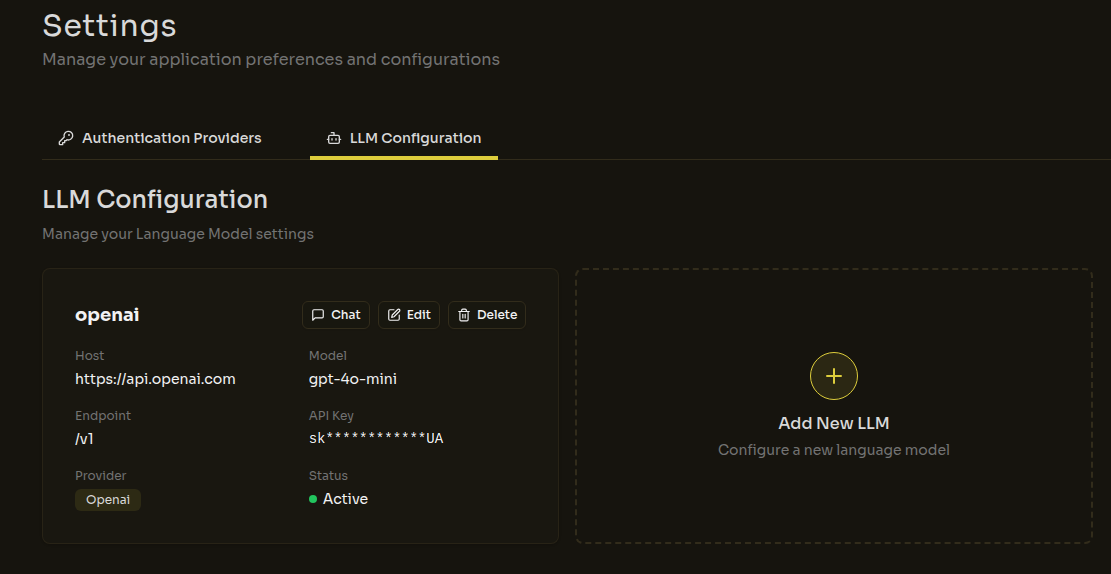
General Configuration Fields
When adding or editing an LLM configuration, ensure these fields are accurately filled:
Name: A unique name for this configuration (e.g., "Milou LLM").Provider: SelectOpenAI,Azure OpenAI, orAWS Bedrock.Model Name / ID: The primary identifier for the model you intend to use.- For OpenAI/Compatible: e.g.,
gpt-4o-mini. - For Azure OpenAI: Your main Azure model identifier (e.g., the model name itself like
gpt-4). The Azure-specific Deployment ID is configured separately below. - For AWS Bedrock: The specific AWS model ID (e.g.,
anthropic.claude-3-sonnet-20240229-v1:0).
- For OpenAI/Compatible: e.g.,
API Key: Your secret API key. (For AWS Bedrock, leave blank if using IAM roles).Host / Base URL: The provider's base API URL (e.g.,https://api.openai.comfor OpenAI).Endpoint / Path(Optional): Specific API path if different from the default (e.g.,/v1).Port(Optional): Specify for non-standard ports (e.g., when using local LLMs).Is Active: Toggle to enable/disable. Milou uses the first active configuration.
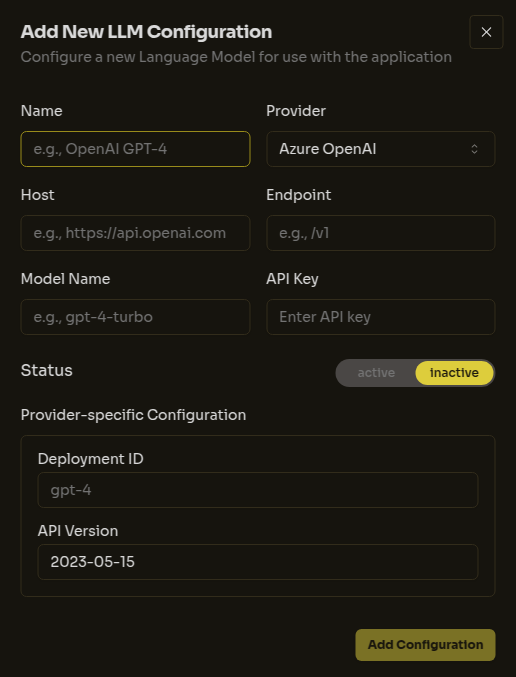
Testing the LLM Connection
Once you have configured an LLM provider, you can test the connection to ensure it's working correctly. Milou provides a simple chat interface for this purpose:
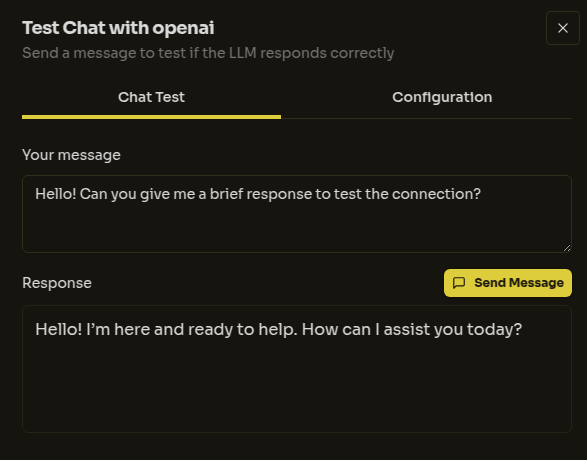
- After saving an LLM configuration, it will appear in the list of configured LLMs on the LLM Configuration tab.
- Locate the configuration you wish to test and click its "Chat Test" button.
- A "Test Chat with [LLM Name]" dialog will appear. Type your test message into the input field.
- Click "Send Message".
- If the connection is successful, the LLM's response will be displayed in the dialog. This confirms that your Milou instance can communicate with the LLM provider using the settings you've provided.
This test is a quick way to verify that your API key, host, model ID, and other settings are correct and that Milou can effectively use the configured LLM for its AI-powered features.
Next Steps
After configuring your LLM, you might want to set up integrations with external reporting platforms. Learn more about Reporting Platform Integrations.